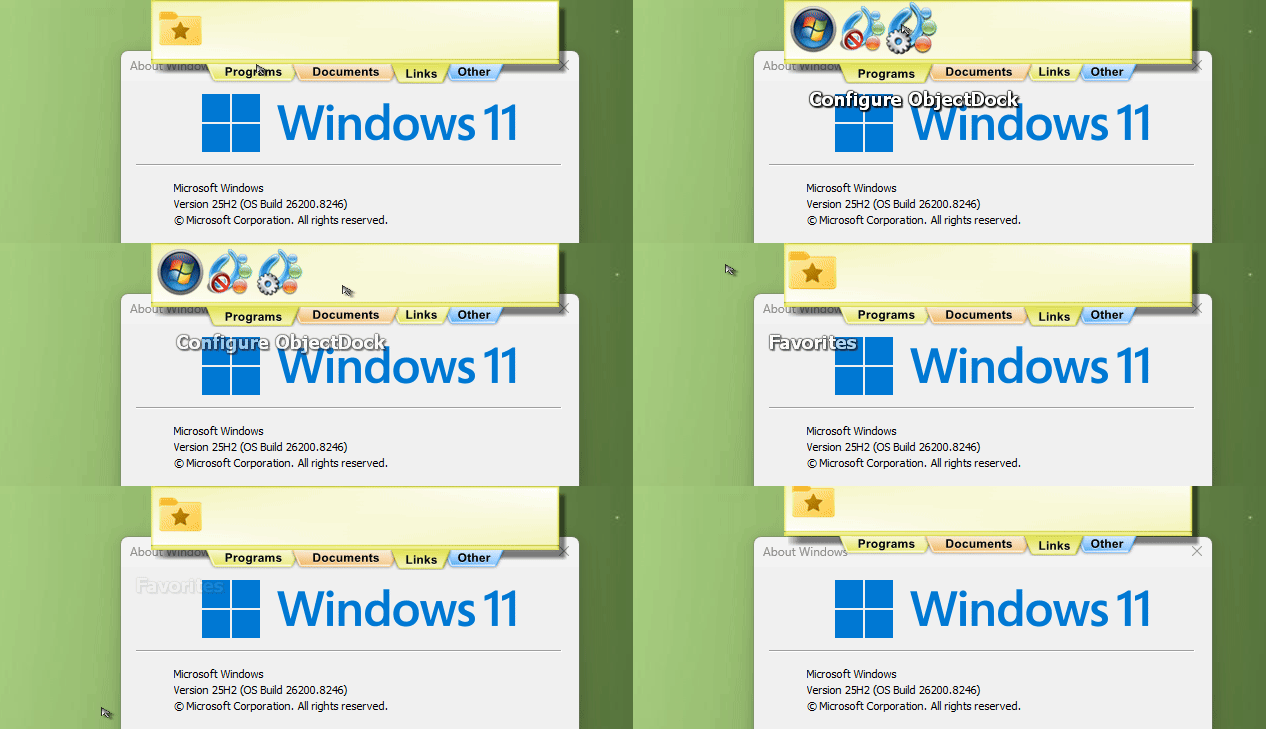
Object Dock slow after recent Windows Update

Since a recent windows update, ObjectDock has become extremely slow at times to respond to mouseover events.  When this occurs, the standard windows "busy" icon appears and the  Quicklaunch Dock fails to zoom at all.  In addition, the top-of-the-screen tabbed dock does not drop down to reveal the button items.

197 views 5 replies
Reply #1 Top

Hello,
Sorry to hear you are having issues. Need to know more on your system.

  1. You on Windows 10 or 11? Also need its full version and OS Build number. Use Winver.exe.
  2. ObjectDock version number installed.
  3. Issue on any dock or only items on tab dock etc?

Thank you,
Basj,
Stardock Community Assistant.

Reply #2 Top

1.  I am on Windows 11 Pro, version 25H2, OS Build 26200.8246.

2.  ObjectDock version 3.01.

3.  The issue occurs on any dock -- the shortcuts do not animate on mouseover, and nothing happens on click.  On a tab dock, the tabs show but the shortcuts do not drop down when the mouse hovers over the tabs.  If I wait long enough (sometimes it takes 30 seconds or more), the docks become responsive.


Reply #3 Top

I can not reproduce your issue on my Windows 11 system. Refer to my short video below.

Please try, uninstall ObjectDock, reboot immediately (important), download latest version available in your account product download page: https://store.stardock.com/myaccount/products. Install it, reboot immediately again. Retest it and report back.

Thank you,

Basj,
Stardock Community Assistant

Reply #4 Top

I uninstalled ObjectDock, rebooted, downloaded the latest version, installed the latest version, and rebooted.  The problem does not seem as bad as it was, but it persists.  I have a screen video of the problem on a QuickLaunch dock, lasting about 1 minute.  Would you like me to send you the video?

Thanks.

Jon

Reply #5 Top

To help isolate the cause of the issue, please try the following steps:

  1. Create a new Admin account Follow the guide here: https://support.microsoft.com/en-us/windows/manage-user-accounts-in-windows-104dc19f-6430-4b49-6a2b-e4dbd1dcdf32. Make sure it is a new Admin account. Log in with the new admin account and check if the issue persists.

    • If the issue does not appear under the new account, this usually indicates that your original admin account is corrupted, and you don’t need to continue with the Clean Boot steps.

  2. Perform a Clean Boot (only if the issue still appears under the new account) A Clean Boot starts Windows with only the essential drivers and services, which makes it easier to determine whether background programs or third‑party services are interfering. You can follow the official Microsoft guide here: https://support.microsoft.com/en-us/topic/how-to-perform-a-clean-boot-in-windows-da2f9573-6eec-00ad-2f8a-a97a1807f3dd

    Why Clean Boot is useful:

    • It reduces conflicts by temporarily disabling non‑essential startup items.

    • It helps identify whether the issue is caused by Windows itself or by another application/service.

    • It provides a controlled environment for troubleshooting without permanently changing your system settings.

    Once you’ve completed the steps, enable ObjectDock to load on startup, reboot, and test your issue to see if it still appears.

    • If the issue does not appear, start enabling other startup applications one at a time, rebooting each time, until you identify the application that is causing the problem.

  3. Restore normal startup After troubleshooting, remember to reset your system to start normally by undoing the Clean Boot changes.

Please try these steps and report back.

Thank you,

Basj,
Stardock Community Assistant